

SmartSTREAM Startup Guide
Return to the User Support Site TopTips
Useful Features and Tips
Embed Multiple Players on a Single HTML Page
If the display becomes distorted when multiple players are posted on a single Web page, this may be resolved by assigning vid (numbers) to each video and appending them after player.
Example)
<link href="https://ovp-player.smartstream.ne.jp/xxx/output/player/xxx/streaksplayer.css" rel="stylesheet" type="text/css">
<script src="https://ovp-player.smartstream.ne.jp/xxx/output/player/xxx/streaksplayer.js?ts=1737323916" charset="utf-8"></script>
<video id="vid1" class="video-js" data-media-player-id="xxx" data-player-id="xxx" data-project-id="username" width="640" height="360">;</video>
<script>
<video id="vid2" class="video-js" data-media-player-id="xxx" data-player-id="xxx" data-project-id="username" width="660" height="360">;</video>
const vid1 = document.getElementById("vid1");
const vid2 = document.getElementById("vid2");
let player_vid1 = streaksplayer(vid1);
let player_vid2 = streaksplayer(vid2);
</script>
Create Players in Bulk
You can configure streaming Web players in bulk for multiple media items.
-
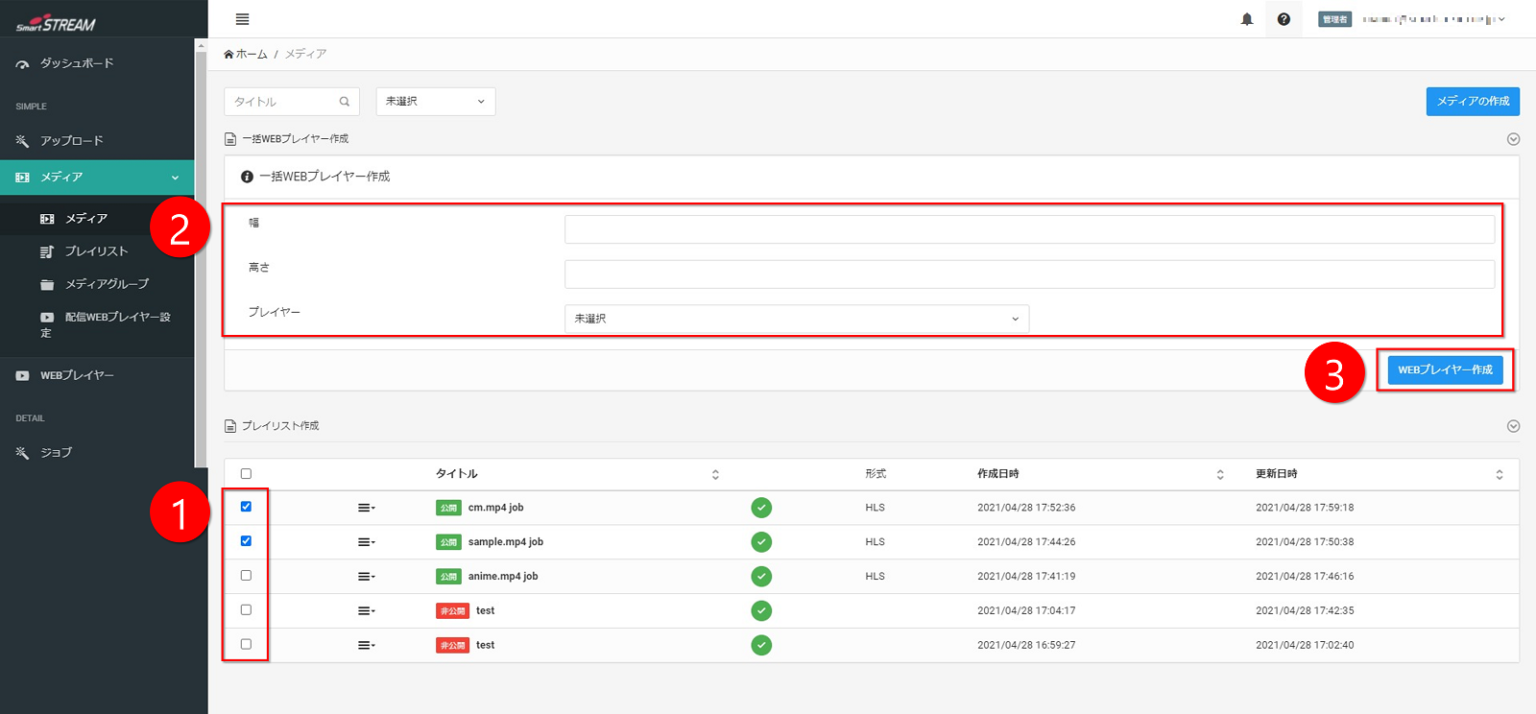
From Home > Media, check the media for which you want to configure Web player settings.
-
Set the width and height and select the player.
-
Click Create Web Player.
Reuse Past Live Events
You can reuse past live events.
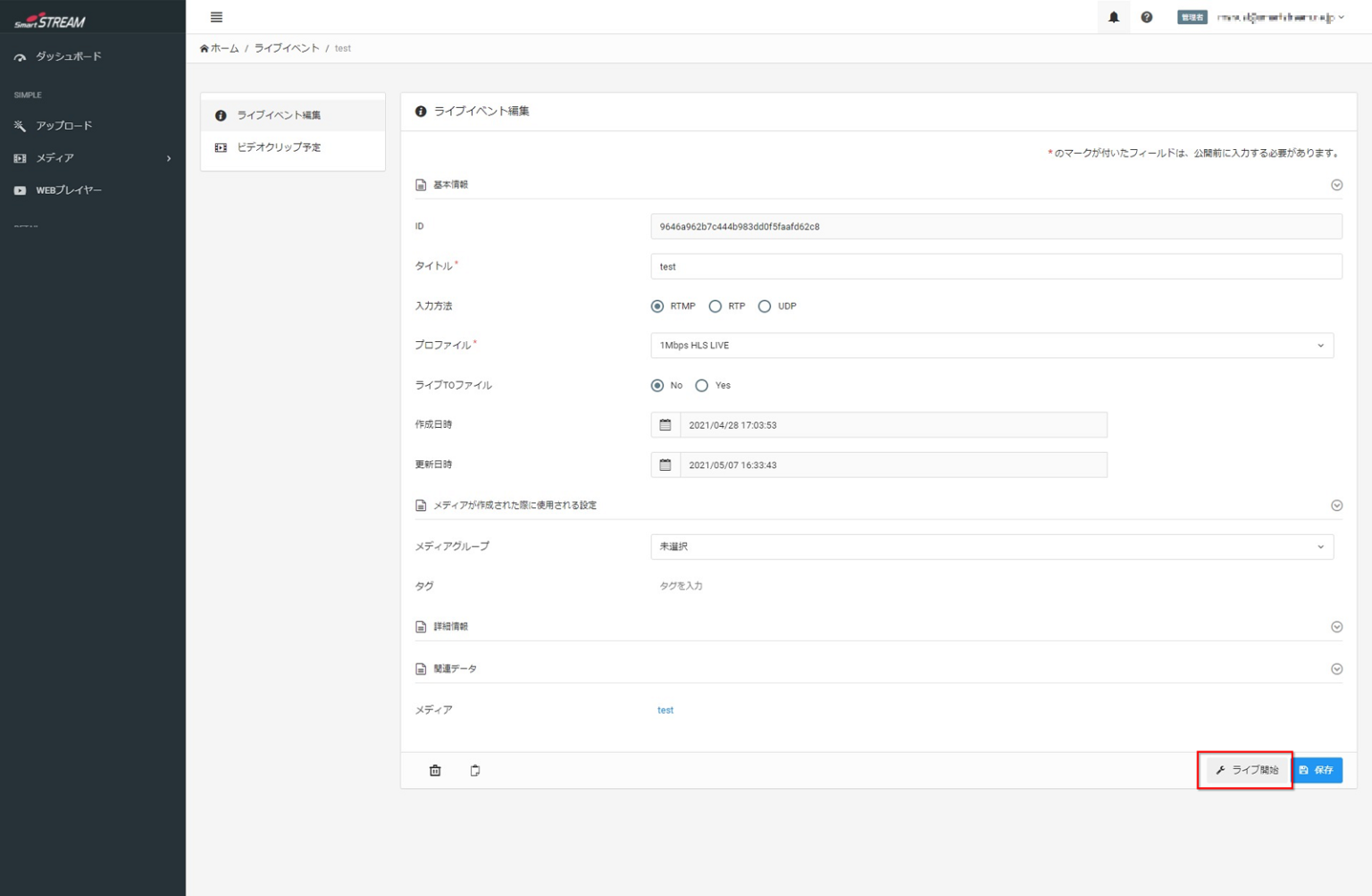
From the Home > Live tab, select a completed live event and click Start Live.

You can fix the upload destination URL for live video.
(Free of charge; application required. Please contact us.)
This eliminates the need to change the upload URL in the encoder when using the same live event.
Easily Replace Videos
You can replace only the video being played without changing the issued viewing URL.
This eliminates the need to change the viewing URL or the embed tag on your website.
Please use this feature for scenarios such as streaming a test video before the live event and switching to the live video after live streaming starts.
This feature can be used for both “on-demand streaming” and “live streaming.”
-

From Home > Streaming Web Player Settings, select the streaming Web player you want to replace.
-
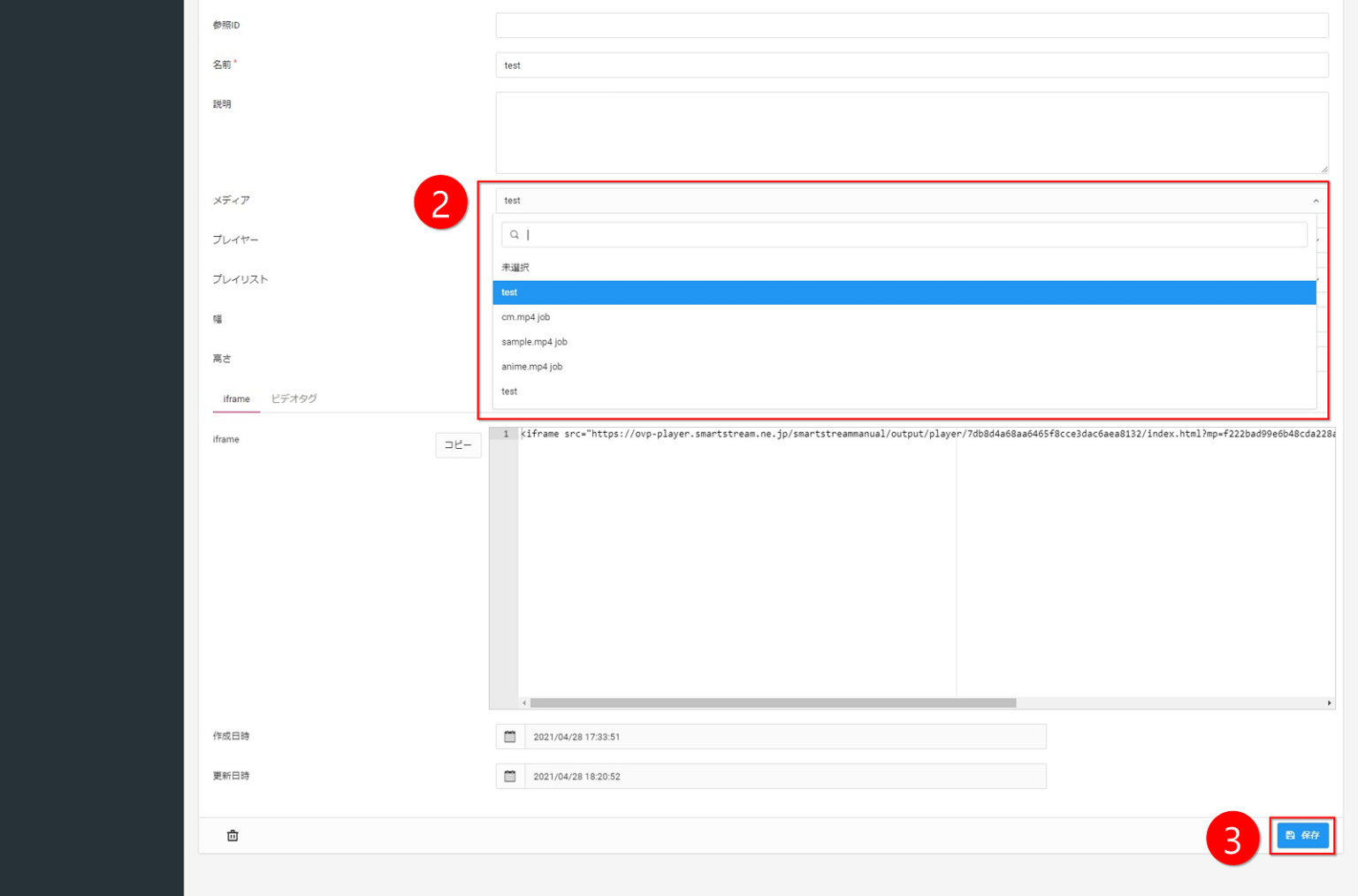
Select the media and change it.
-
Click Save.

Please note that changing the Web player will change the viewing URL.
Troubleshooting
| Issue | Solution |
|---|---|
| Validation Error is displayed | Video files whose file names contain full-width or half-width spaces cannot be uploaded. |
| The file cannot be uploaded | Please check the file size. Due to browser limitations, the maximum uploadable file size is 4 GB. |
| Encoding failed | Please check whether the codec or container of the uploaded file is supported by this service. |
| VOD created with video clips or Live to File cannot be viewed | After processing, it may take some time for the status to change to “Public.” Please wait a moment. |
For further details, please refer to the SmartSTREAM Support Manual.
Common Setting Mistakes
Delete Videos
Encoded files (videos being streamed) can be deleted from Media.
If you also want to delete uploaded files (videos before encoding), you can delete them by selecting them from “Jobs.” Please use this if you want to reduce disk usage.
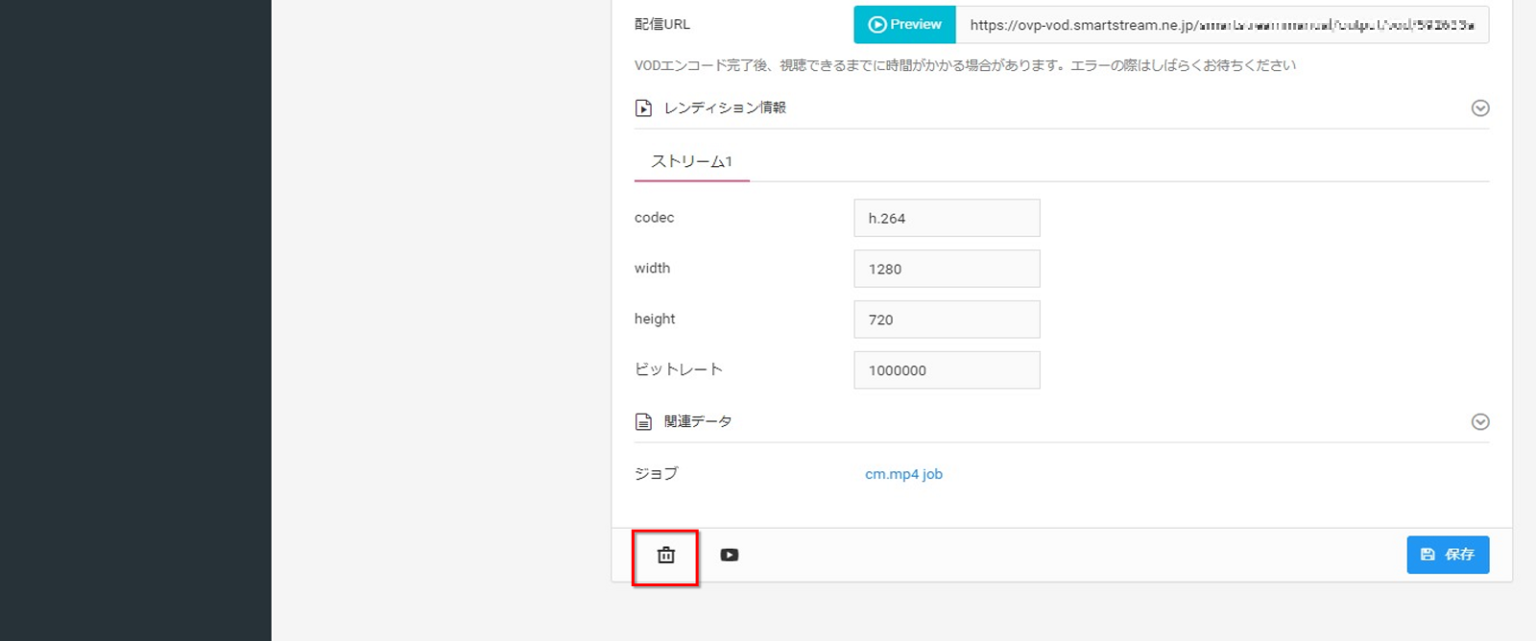
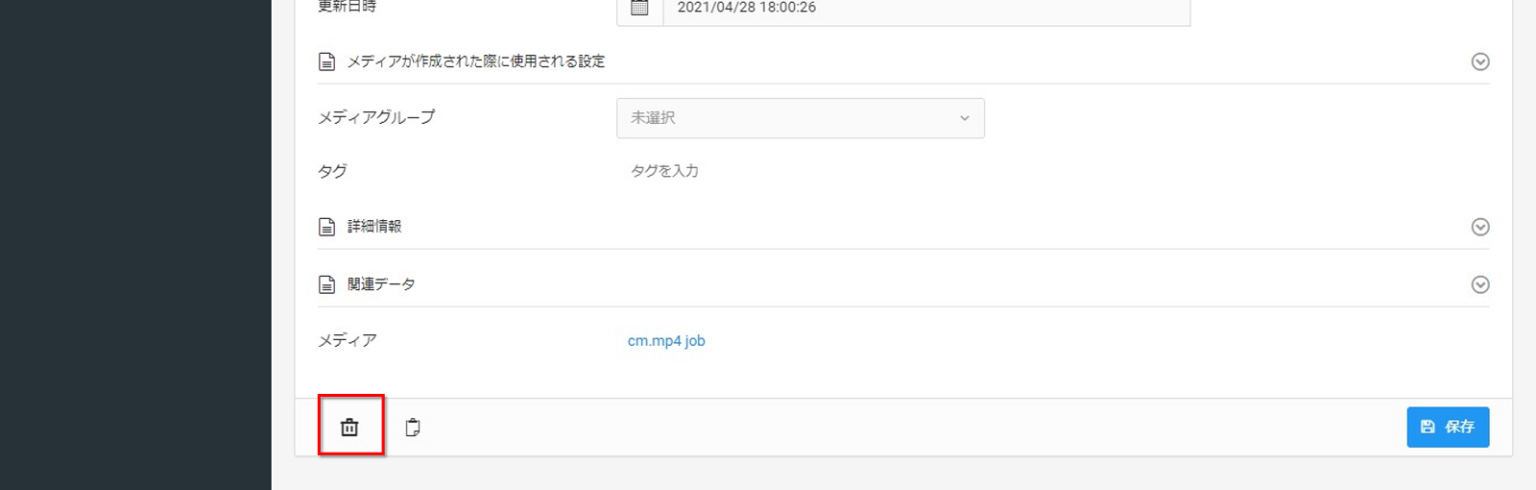
Normally, re-encoding is possible by changing the profile, such as adjusting video quality.
Please note that deleting a “Job” will make re-encoding impossible. If re-encoding is required after deleting a job, please upload the file again.
Check Analytics Information
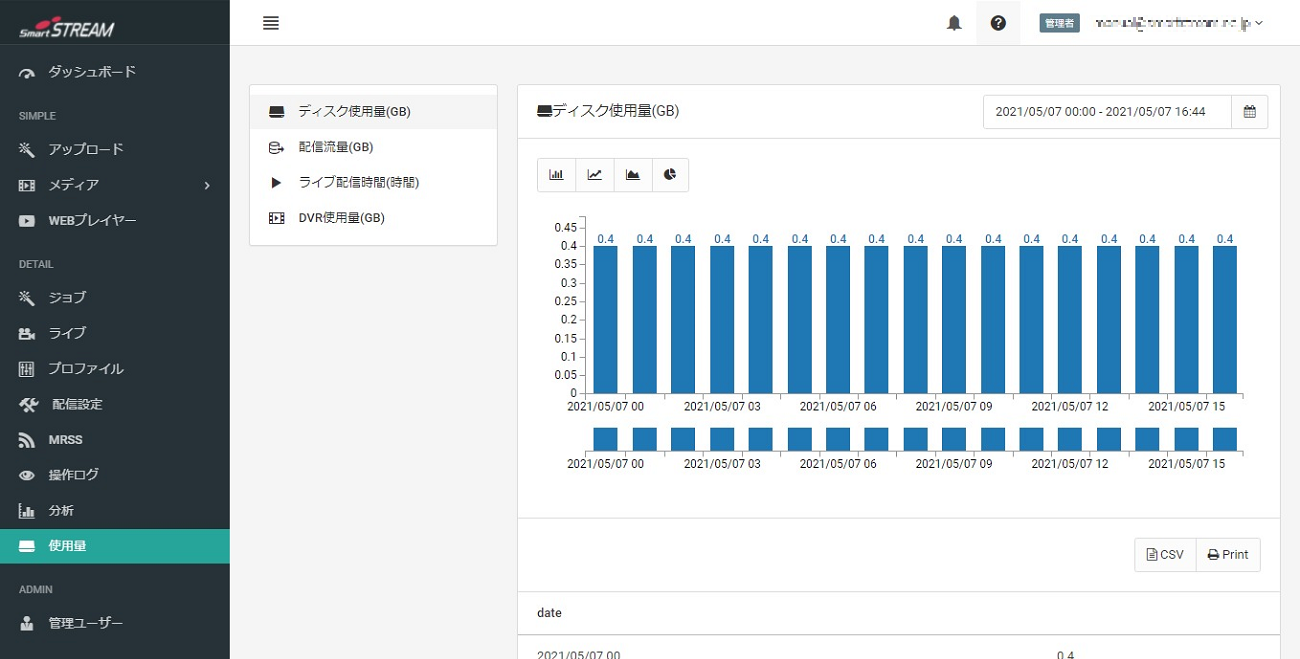
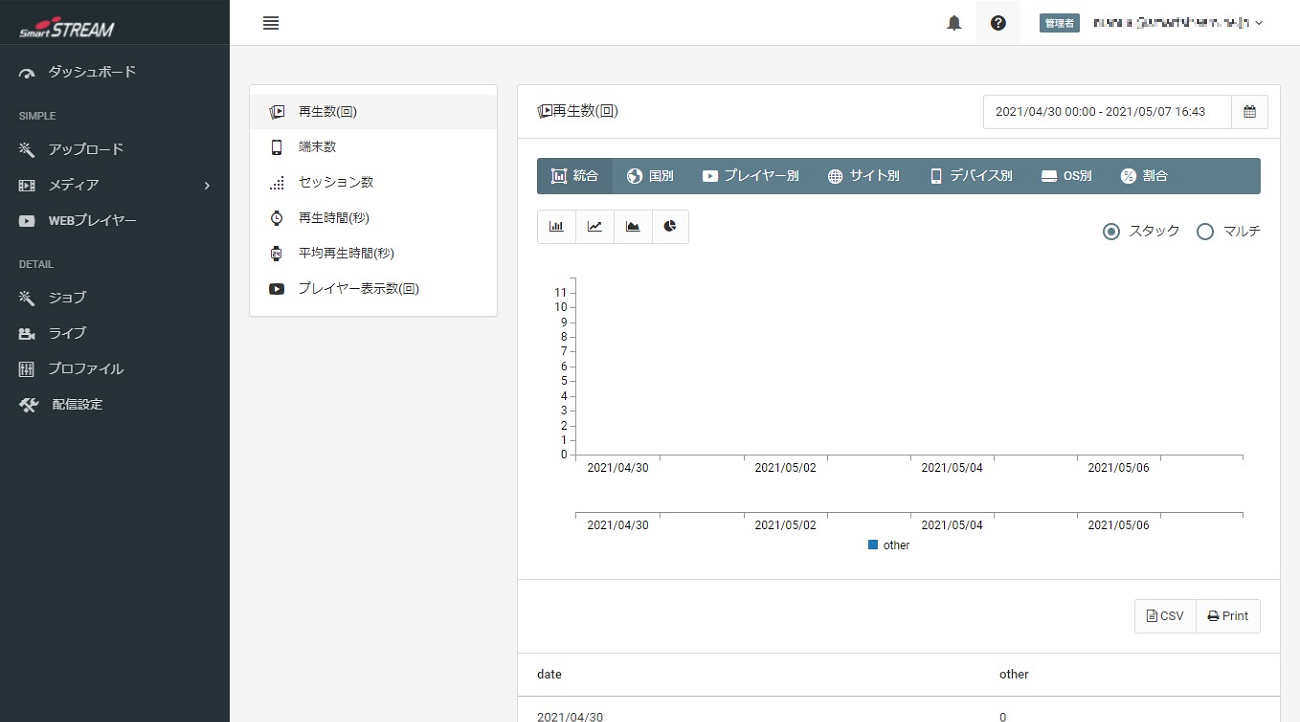
Please check the following items related to usage-based billing.
・Analytics > Playback Count
・Usage > Disk Capacity