


SmartSTREAM Startup Guide
Return to the User Support Site TopOperate and Manage with Multiple Users
It is possible to manage streaming with multiple users.
We initially provide one account, but you can freely add or delete accounts yourself.
First, create usage permissions (management roles), then create management users and assign roles to users.
Create Permissions
-

Home>Management Roles>Click Create Management Role.
-
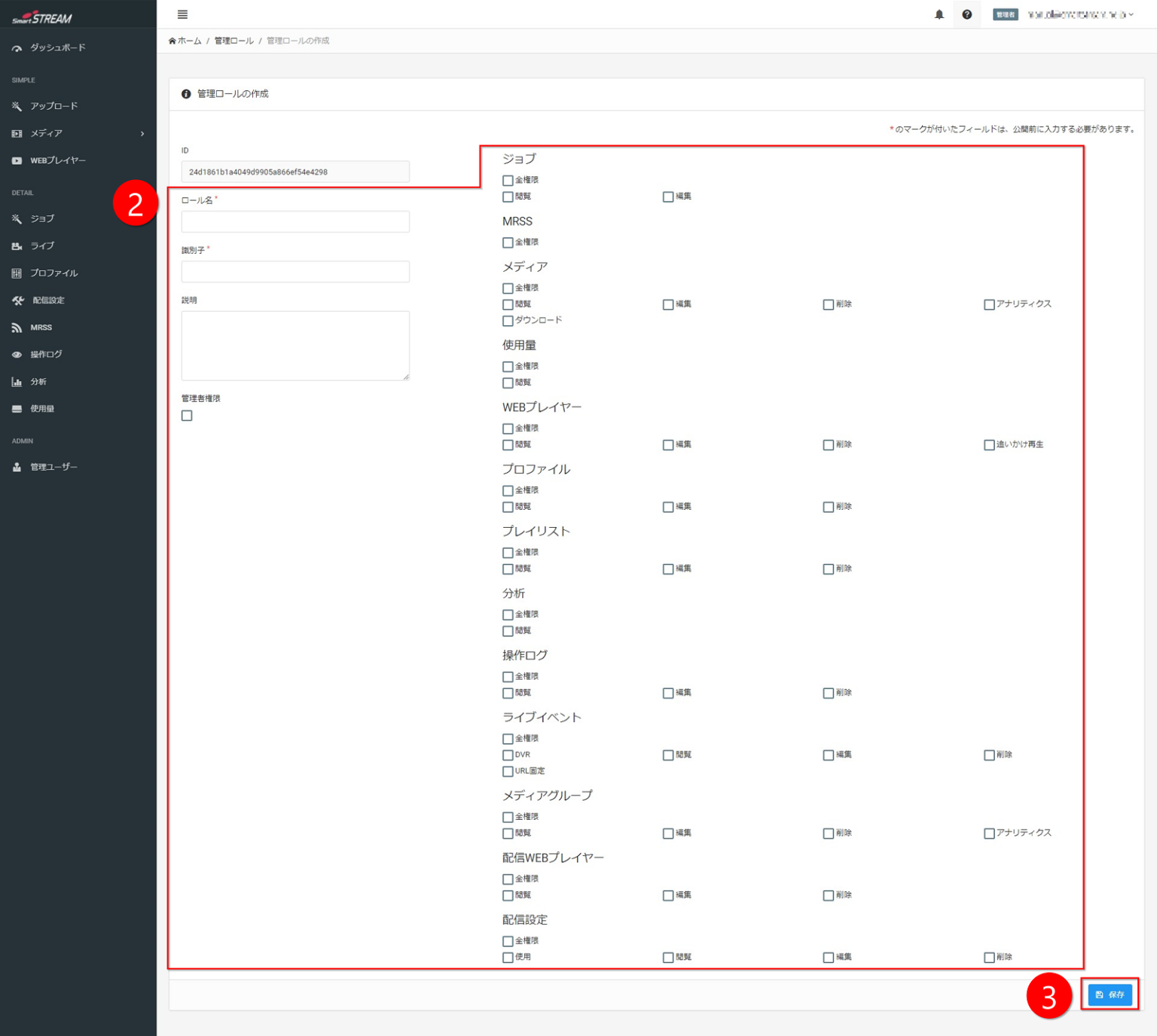
Configure each item.
(Refer to the following for input items.) -
Click Save.
Input Items
| Item | Description |
|---|---|
| Role name | The name of this role. Since it will not be made public, please set a name that is easy to understand. |
| Identifier | Used to identify this role. Please set it using alphanumeric characters. |
| Description | A description of this role. Enter as needed. |
| Administrator privileges | Check this if you want to grant the same privileges as the account initially provided by us (all functions in the management console can be used). |
| Individual check items | If you want to further subdivide permissions, configure each check item. Permissions are granted per item in the left column. ・All permissions: Grants all permissions on that page. ・Use: Grants permission to use that function. ・View: Grants permission to view that page. ・Edit: Grants permission to edit on that page. ・Delete: Grants permission to delete on that page. ・Analytics: Grants permission to use analytics functions. ・Download: Please apply the same setting as View. ・Catch-up playback: Check this to allow viewers to rewind and play back during live streaming. ・Fixed URL: Check this if you want to fix the encoder input URL during live streaming. ※ If you check this, please take sufficient care to ensure the input URL is not disclosed externally. |
Create Users and Assign Permissions
-

Home>Management Users>Click Create Management User.
-
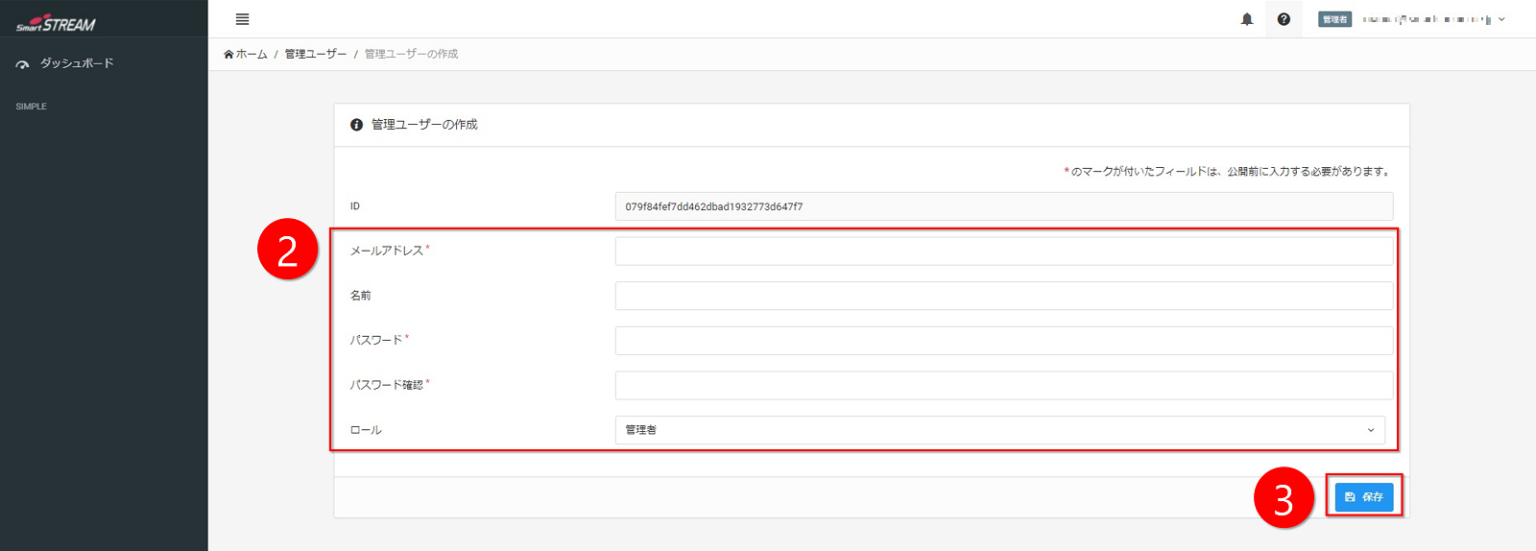
Configure each item.
(Refer to the input items below.) -
Click Save.
Input Items
| Item | Description |
|---|---|
| Email address | Enter the email address the user will use to log in. |
| Name | Enter the user’s name. Since it will not be made public, we recommend using a name that is easy to understand. |
| Password | Set a password using a combination of alphanumeric characters. |
| Password confirmation | Re-enter the password. |
| Role | Select the permissions created earlier. |