


SmartSTREAM Startup Guide
Return to the User Support Site TopPlay Videos in Playlist Order
By using the playlist feature, you can create a list of uploaded media files and play them in sequence.
If you will be using media that has already been uploaded, skip the following "Upload and Encode Video" section and proceed to "Create a Playlist".
If there is no media, proceed to the following "Upload and Encode Video" section.
Upload and Encode Video

There are character strings that cannot be used as file names, such as half-width spaces and half-width parentheses ().
For details, refer to Characters That Cannot Be Used in Video File Namesin the Notes section.
-
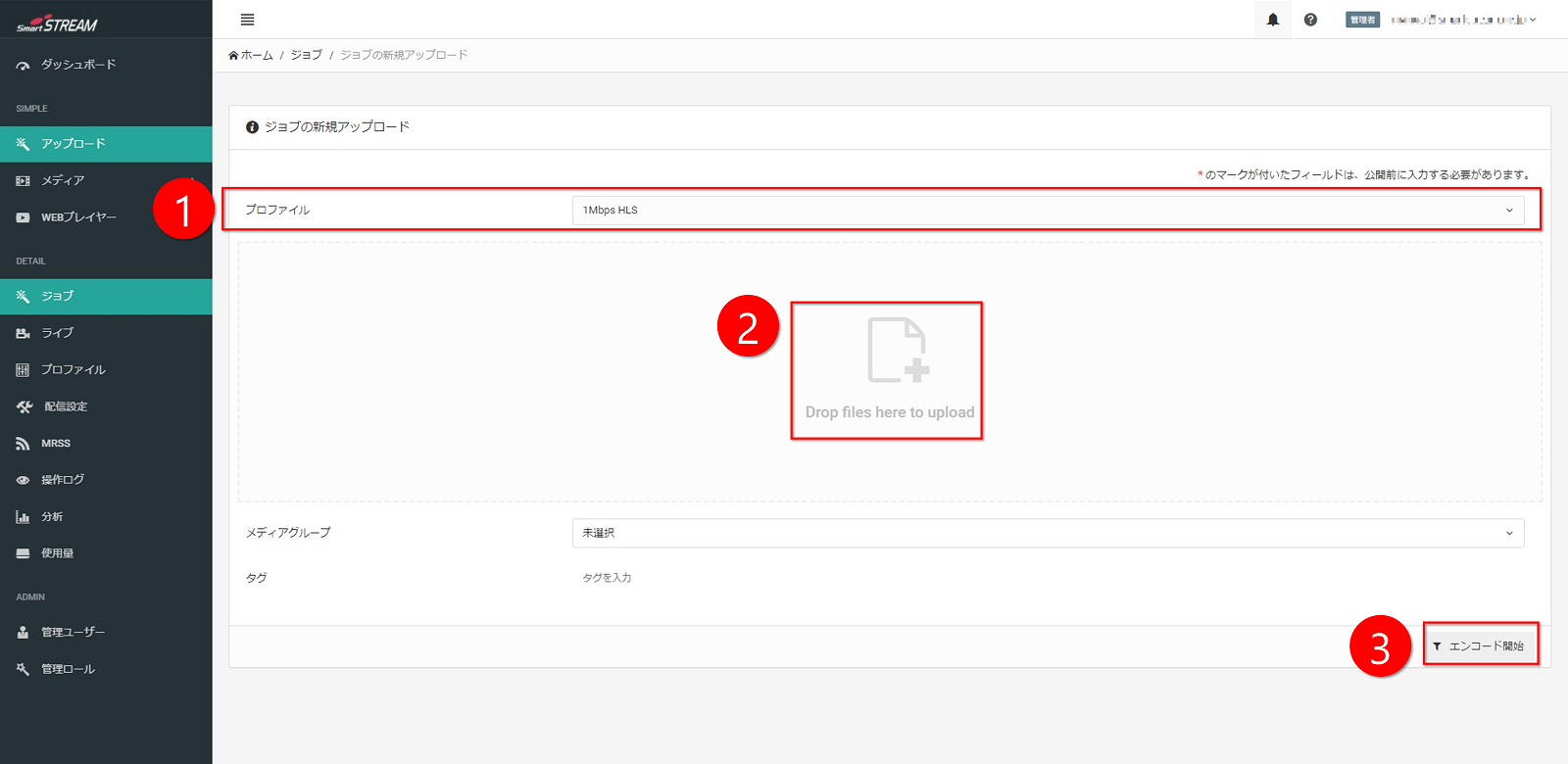
In the profile on the Upload tab, select the format you want to encode.
(Simple Plan uses 1 Mbps HLS.) -
Drag and drop the content you want to publish on the internet.
-
Click Start Encoding.
-
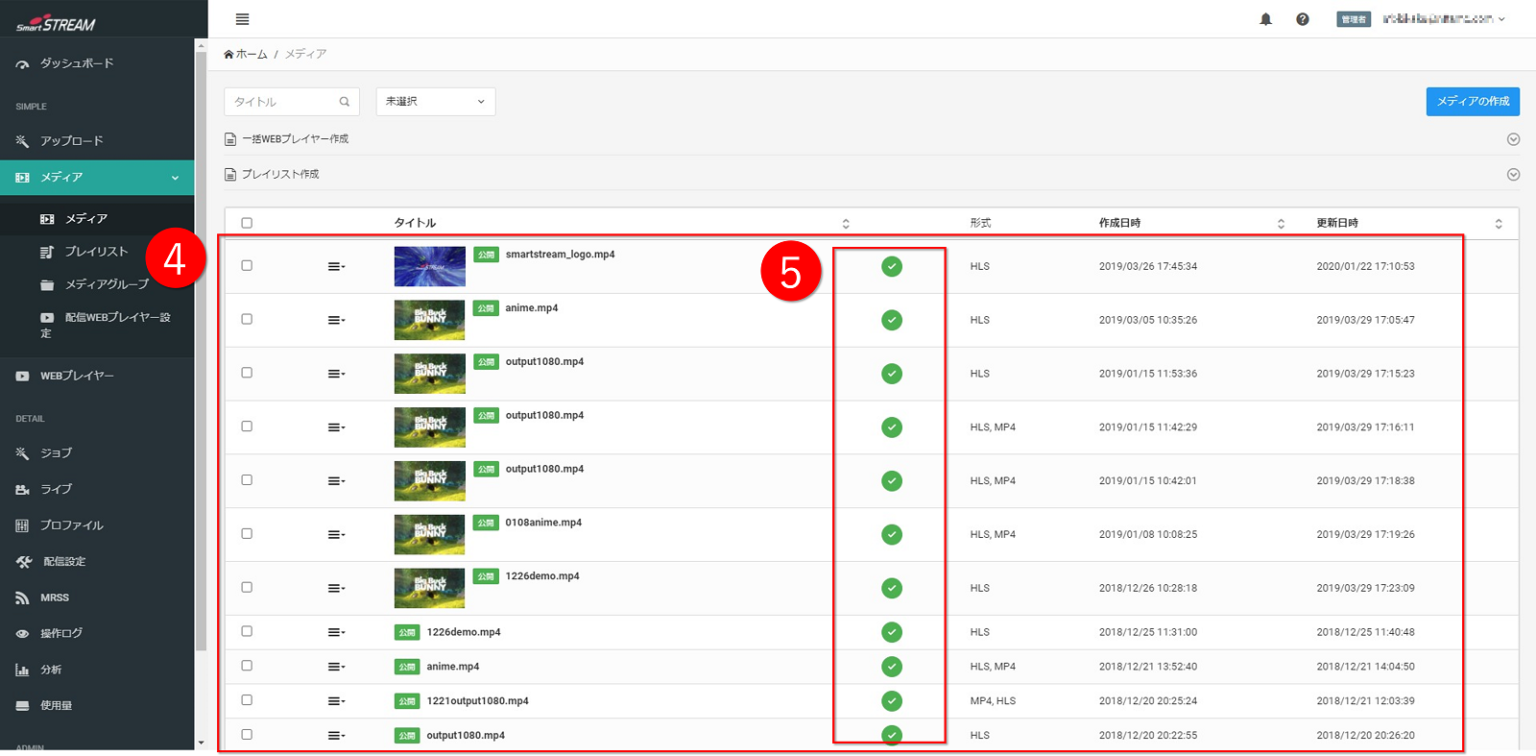
Display the media list from Home > Media tab.
-
When the encoding status of the encoded content shows
 in the media list, the process is complete.

When uploading multiple videos, it is convenient to use the FTP function. When uploading using the FTP function, please refer to "Upload Videos via FTP".
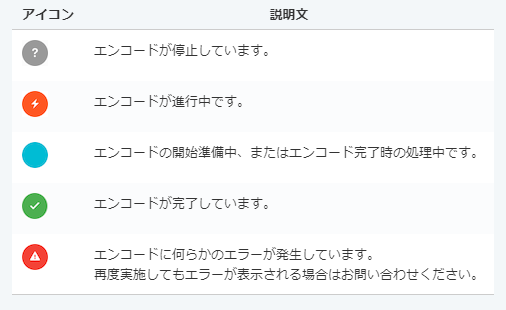
 Icon Descriptions for Encoding Status
Create a Playlist
Using a playlist, uploaded videos can be listed and played in order. There are two ways to create a playlist: an easy method from the media list, and a method from the playlist menu.
Create a Playlist (Simple Method)
Create a playlist simply from the media list.
-
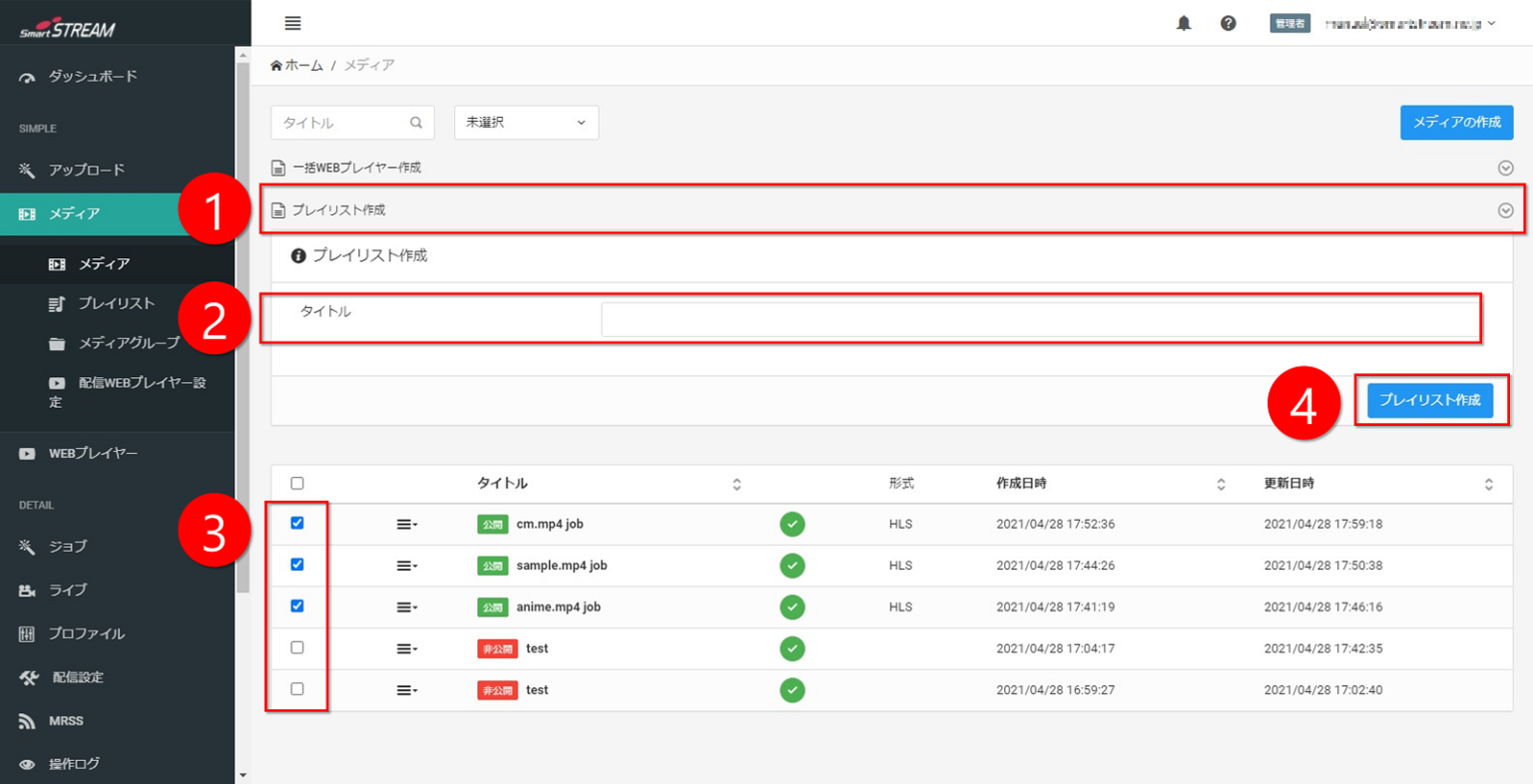
Click Create Playlist via Home > Media > Create Playlist.
-
Enter a playlist name.
-
Check☑ the media to be included in the playlist.
-
Click Create Playlist.
Create / Edit / Delete from the Menu
On the playlist list screen, you can edit or delete existing playlists.
Create a new playlist via Create Playlist as shown below.
-
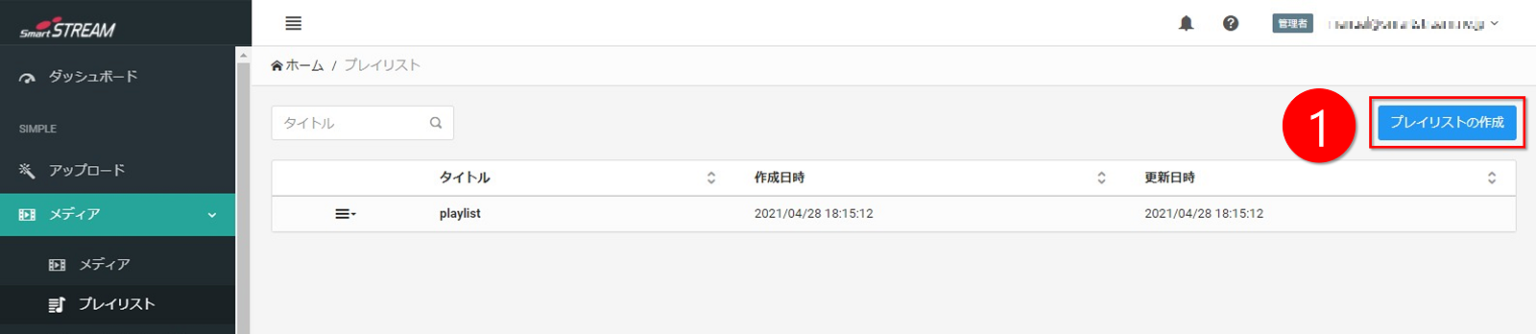
Display the playlist list screen via Home > Playlist and click Create Playlist.
-
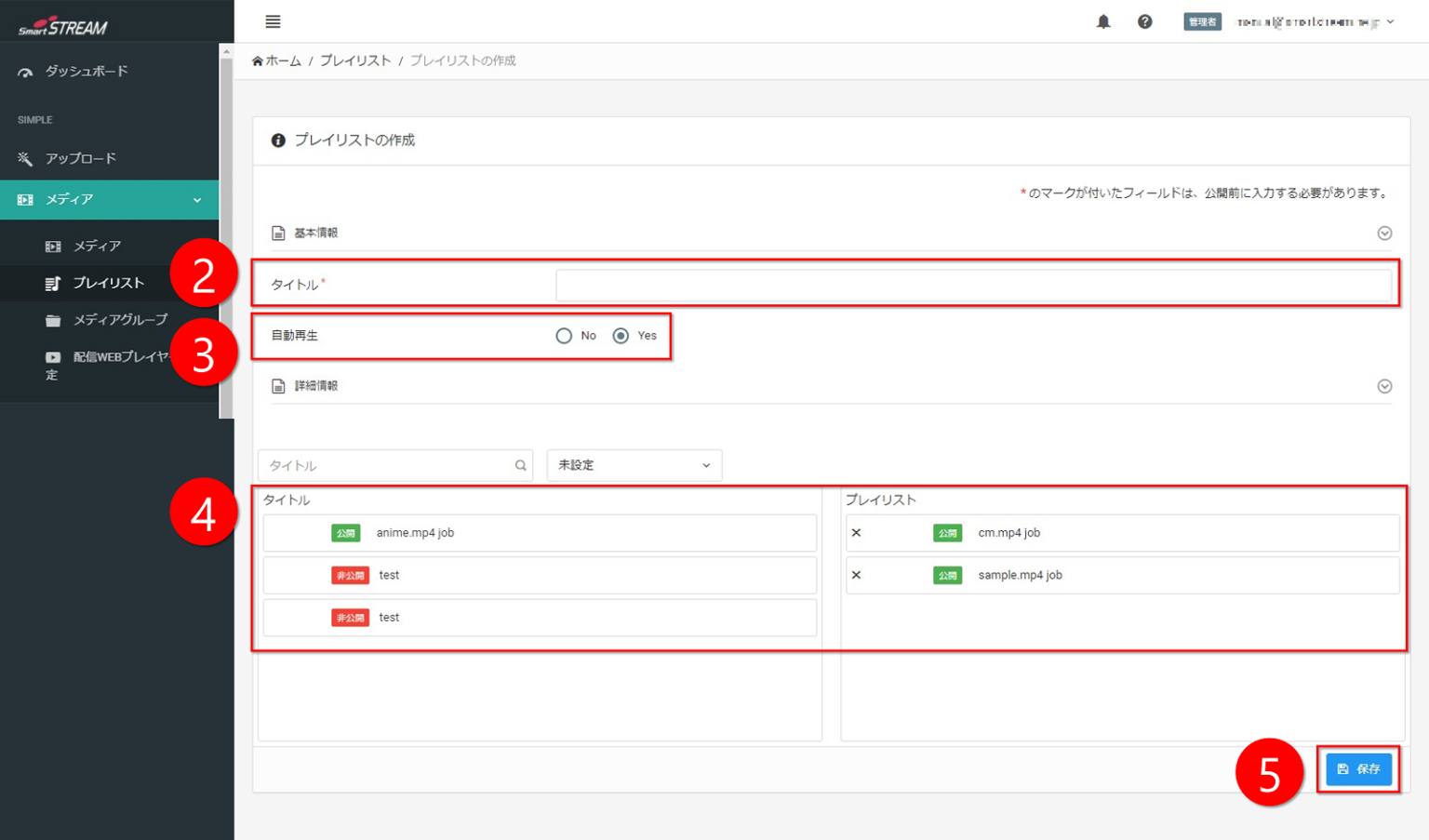
Title: Enter the playlist name.
-
Autoplay: Enable or disable automatic playback between playlists.
-
Add to Playlist: Drag and drop the media to be added to the playlist.
-
When preparation for playlist creation is complete, click Save.
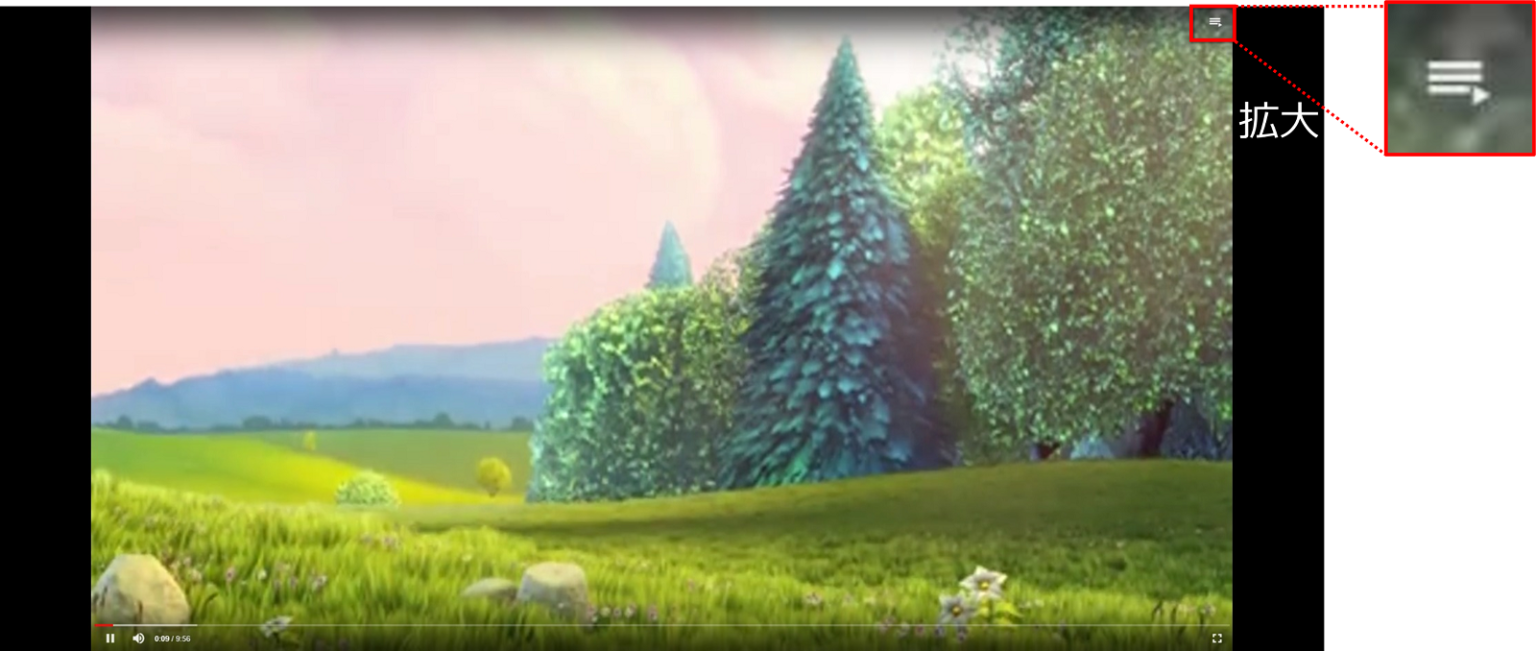
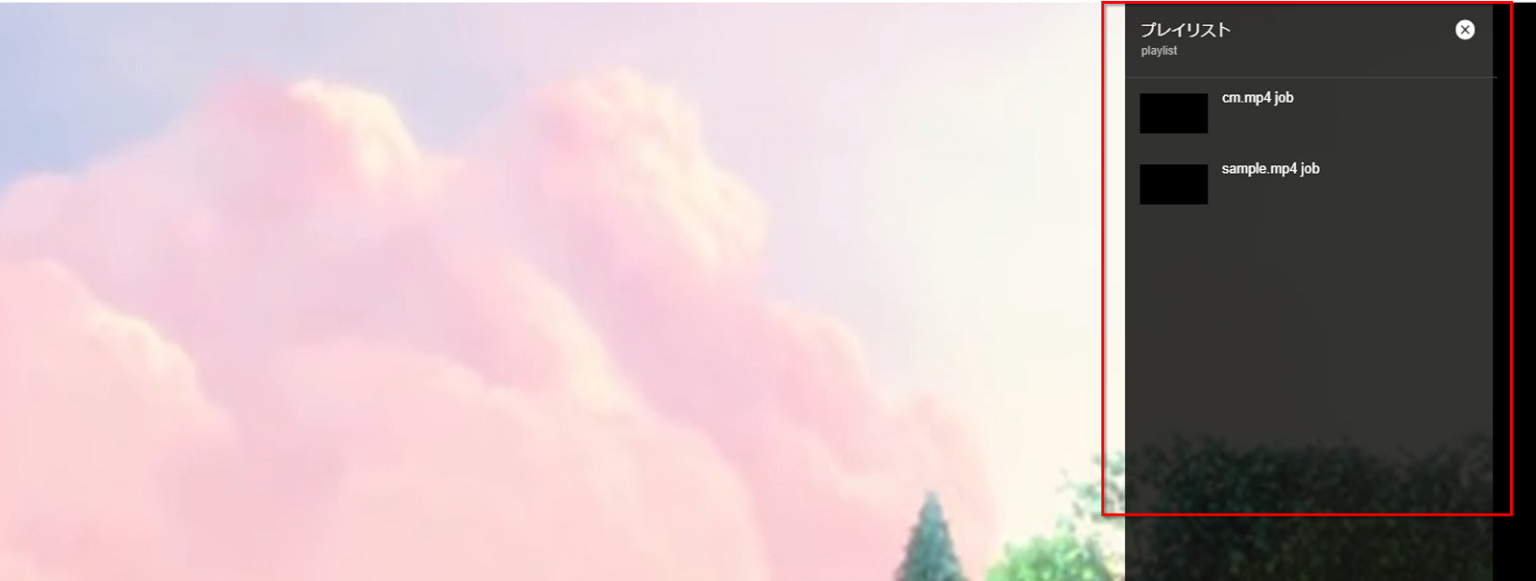
The playlist will be displayed as shown below.
▼
Link a Playlist and Web Player
-
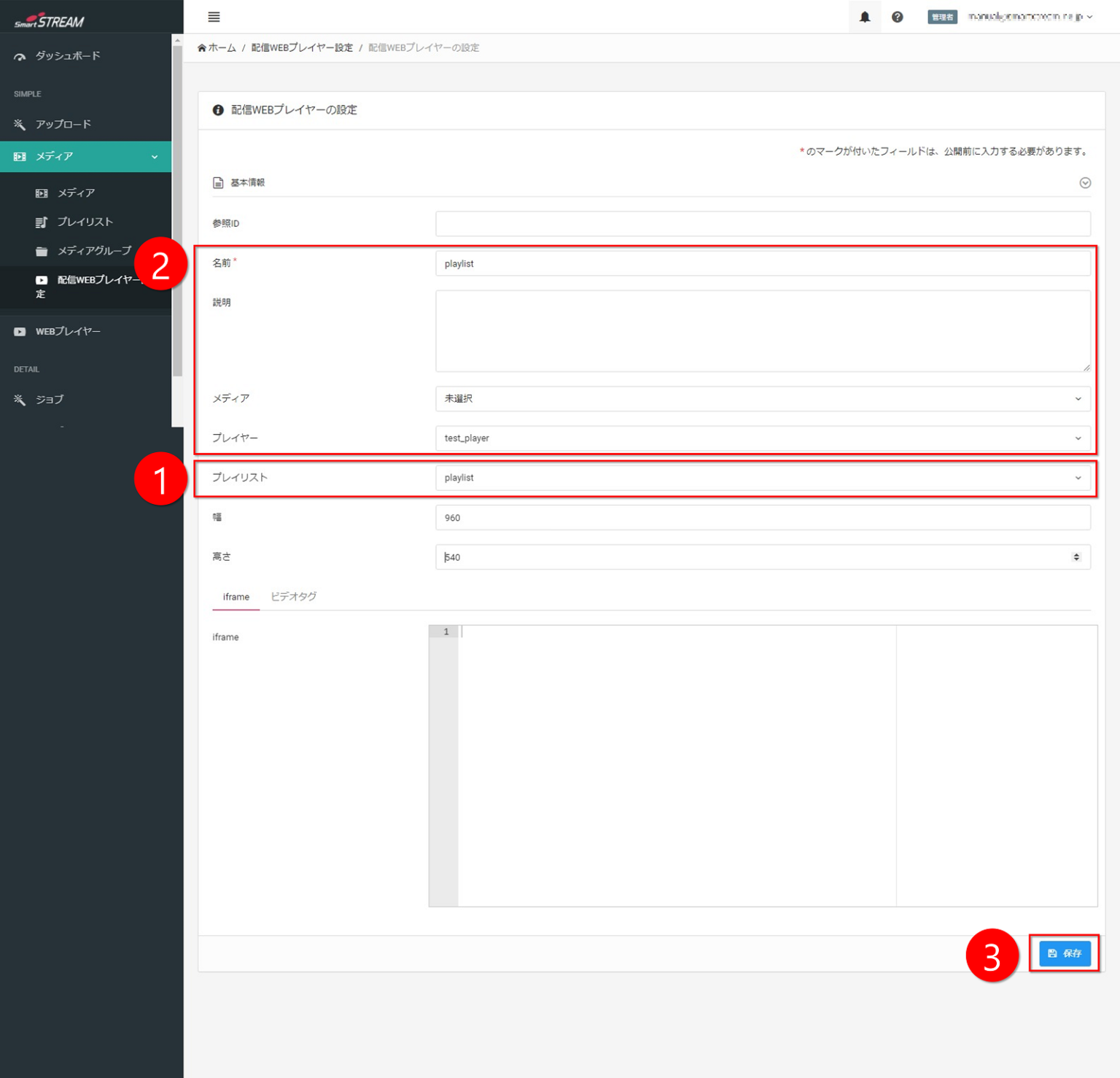
On the Streaming Web Player Settings tab via Home, select a saved playlist./p>
-
As with VOD and live streaming, enter a name and select a Web Player.
-
Click Save.
Streaming Web Player Settings
Link the playlist and Web Player.
It is also possible to configure only a playlist, or to deliver media + playlist.