


SmartSTREAM Startup Guide
Return to the User Support Site TopUpload Videos via FTP
This section explains how to upload and encode videos to SmartSTREAM using FTP client software (software that transfers files between the customer’s PC and the server).
Videos can also be uploaded from the Management Screen, but when uploading and encoding multiple files at once, using the FTP function is convenient.

Prior registration is required to use this feature.
To use the FTP function, you must install FTP client software on your PC in advance.
This page explains the procedure using WinSCP as an example.
Connect to the FTP Server
-
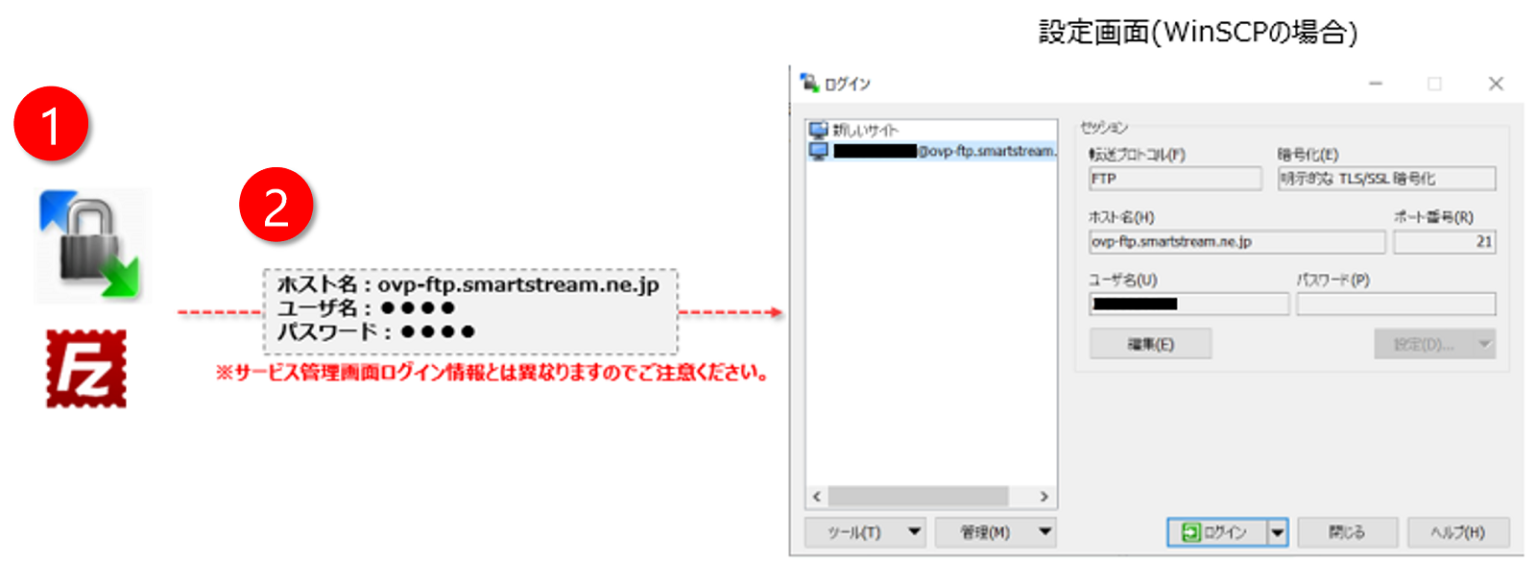
Prepare FTP client software.
-
Access the FTP server using the FTP account information provided by us.
Create a Directory
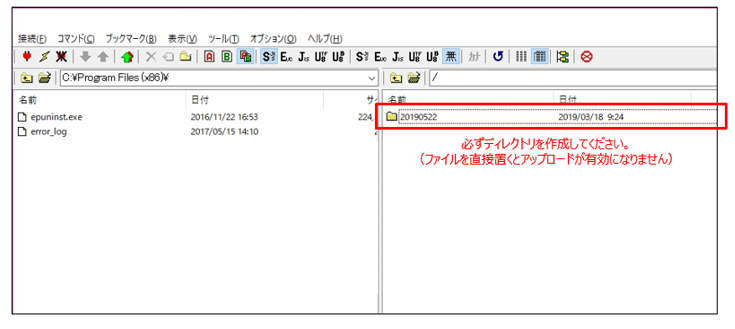
Create a directory on the connected FTP server. (You may choose any directory name.)

Be sure to create a directory on the FTP server.
If files are placed directly without a directory, the upload will not be enabled.
Upload Videos
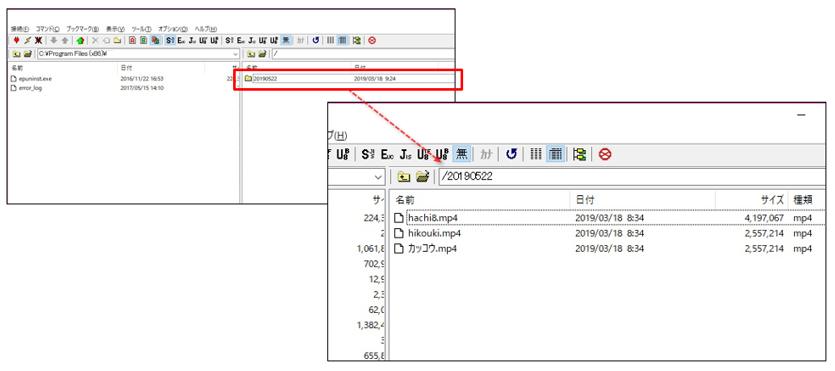
Upload files to the created directory.
Encode Videos (→ continue to VOD Delivery)
-
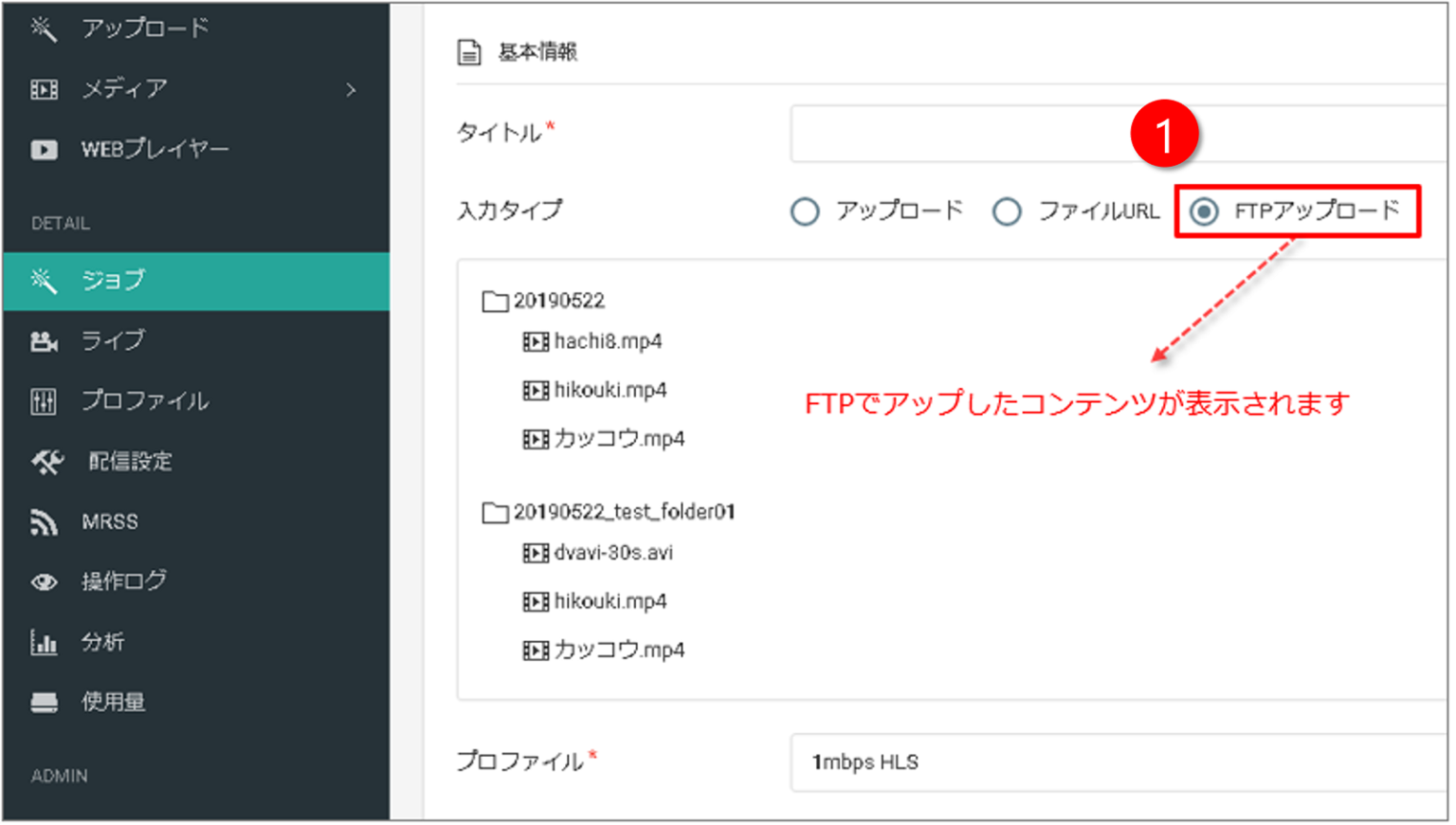
Select Home > Jobs > FTP Upload.
-
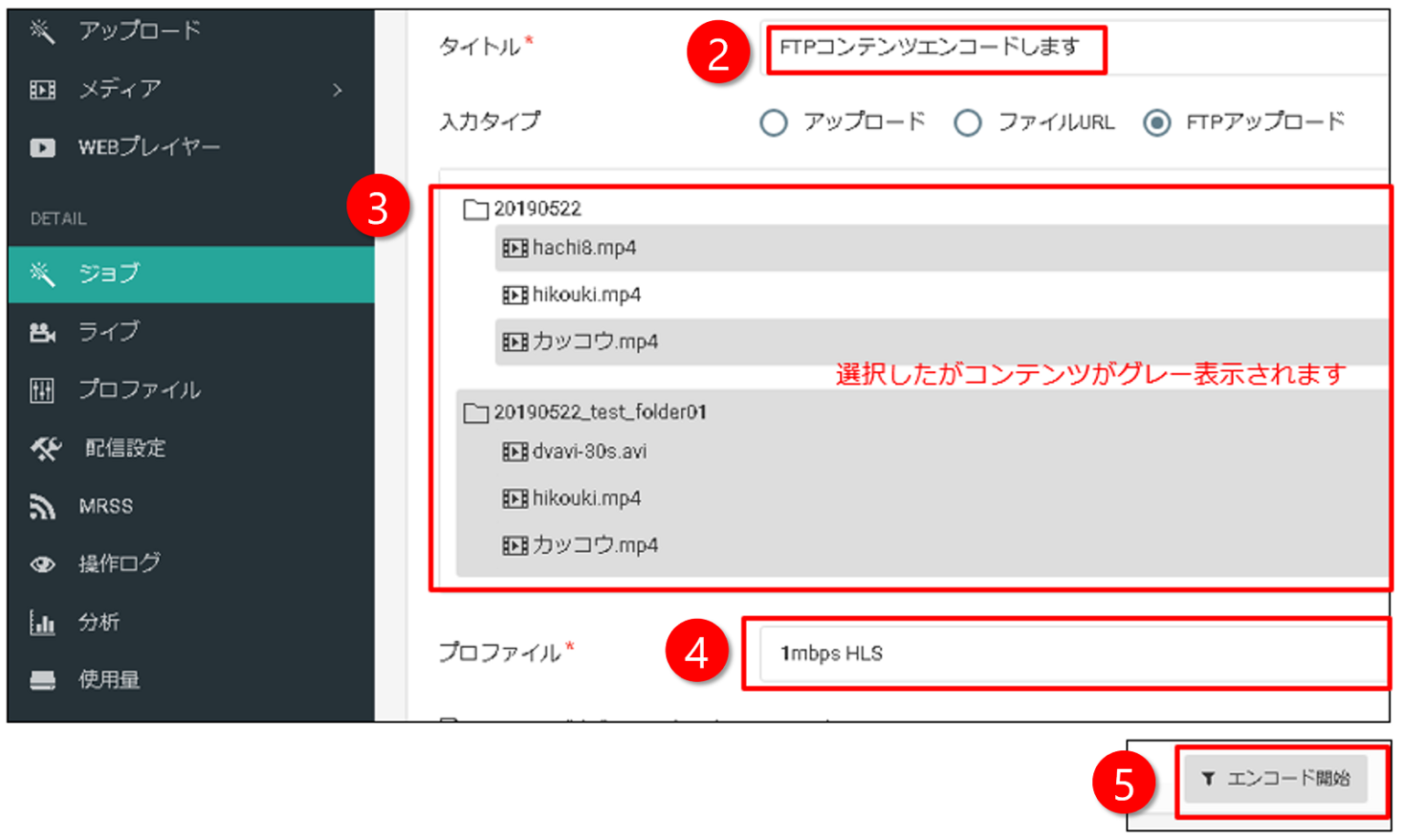
Enter a title.
-
Select the video file you want to encode.
-
Select a profile.
-
Click the Start Encoding button.
-
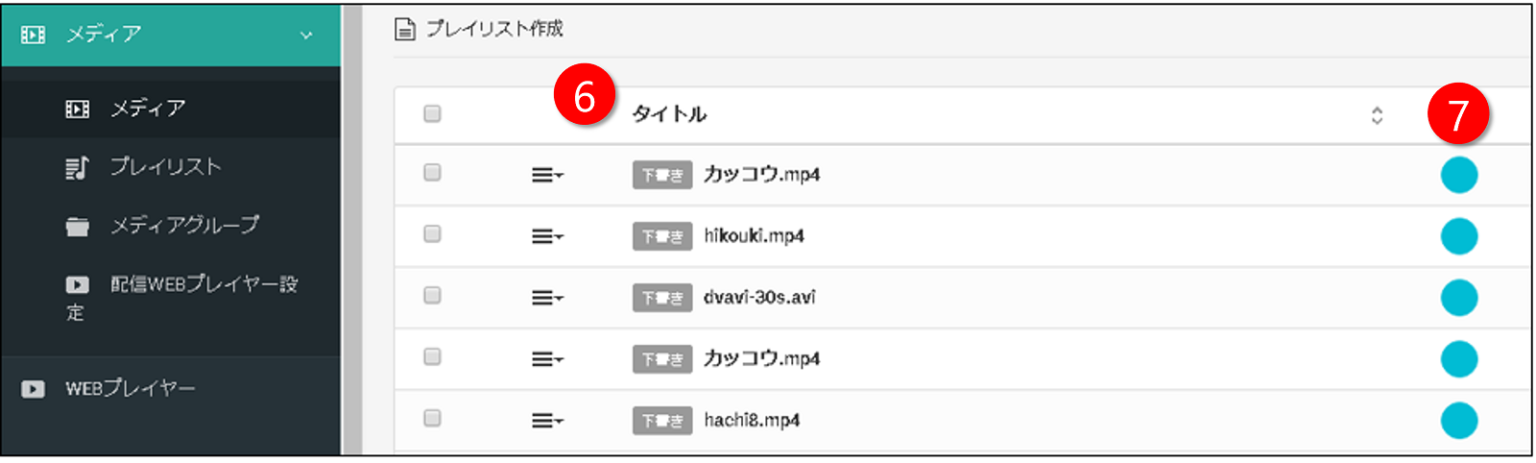
Confirm that encoding has started via Home > Media.
-
From this point on, the process is the same as a normal upload. When the icon changes to a check mark
 after encoding is complete, the process is finished.