


SmartSTREAM Startup Guide
Return to the User Support Site TopApply Viewing Restrictions and Prevent Unauthorized Redistribution
With this service, videos are published (streamed) on the internet, which means that anyone who knows the video URL can view them.
However, in cases such as internal company distribution or distribution to paid members only, making videos viewable by anyone creates a risk of leakage or unauthorized redistribution.
In this way, when distributing content to a limited audience, there are methods to restrict who can view the video and to prevent unauthorized redistribution.
In this section, we introduce seven features provided by this service. By combining these features as needed, you can distribute videos securely.
Combination Examples
- When streaming on an internal company site
Password Authentication × Domain Restriction - When streaming on a paid members-only site
Password Authentication × Public Availability Period Settings
Configuration Methods (7 Features)
1.Password Authentication Settings (Recommended!)
Requires users to enter a password before playing a video. This is the simplest and most common way to restrict viewers. Passwords can be set for each Web Player. When a viewer accesses the web page where the Streaming Web Player URL is embedded, a password entry window is displayed.

For instructions on how to set a password, see “Customize Player”.

This feature operates within the Web Player (JavaScript) itself and uses a mechanism different from general Basic authentication. If you embed the player tag in a web page, we recommend implementing authentication on the destination web page as well.
2.Public Availability Period Settings (Recommended!)
You can set the period during which a video can be viewed. This is recommended for training videos with fixed schedules or time-limited music live streams. The availability period can be set from the Media screen by specifying the publication start date/time and end date/time. Media outside the availability period will automatically become private and cannot be played.
-

Click Home > Media and select the media name for which you want to set the availability period.
-
Select the availability period and choose the start date/time and end date/time.
-
Click Save.
3.IP Address Restriction Settings
Specify which users can play the Streaming Web Player by IP address.
Playback is blocked even if access is attempted from unauthorized sources.
Settings are configured on the Media settings screen. IP addresses can be specified using a whitelist or blacklist.
-

Click Home > Media and select the media name for which you want to set IP address restrictions.
-
In IP Restriction Settings, select either Whitelist or Blacklist, then enter the IP address.
-
Click Save.
4.Domain Restriction Settings
Specify the websites on which the Streaming Web Player is allowed to operate by domain name.
(Example: XXXX.co.jp)
-

Click Home > Media and select the media name for which you want to set domain restrictions.
-
In Host Restriction Settings, select either Whitelist or Blacklist, then enter the domain name.
-
Click Save.
5.One-Time URL Settings (Optional)
The URL of the video file retrieved by the player during streaming is valid only for a specified period. This helps prevent unauthorized distribution and redistribution of videos. For example, even if a viewer copies the video file URL and posts it on another website, the URL is only valid for a certain period (freely configurable by the customer), and once that period expires, the video can no longer be viewed.
-
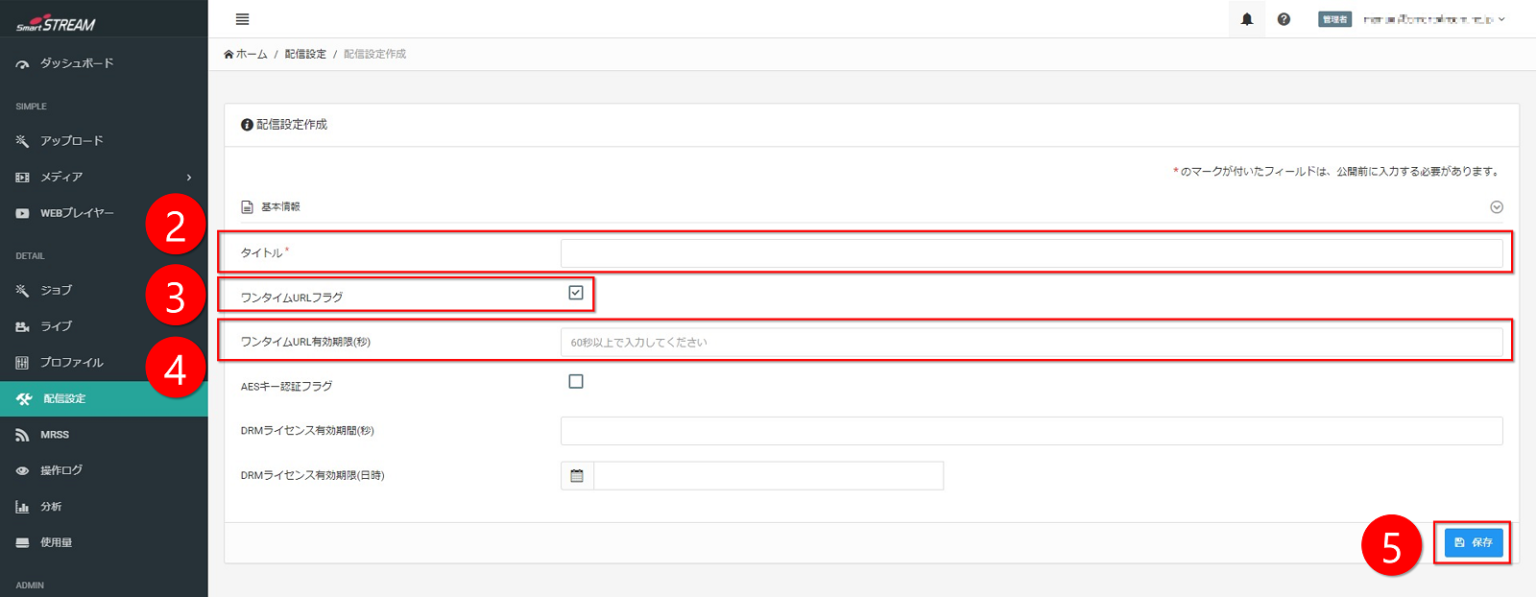
Click Home > Distribution Settings > Create Distribution Settings.
-
Enter a title.
(Since this is not publicly visible, set a name that is easy for the distributor to understand.) -
Check the One-Time URL flag.
-
Enter the One-Time URL expiration time (seconds).
(Set the period during which the One-Time URL is valid. It can be set in one-second increments, with a minimum of 60 seconds.) -
Click Save.
-
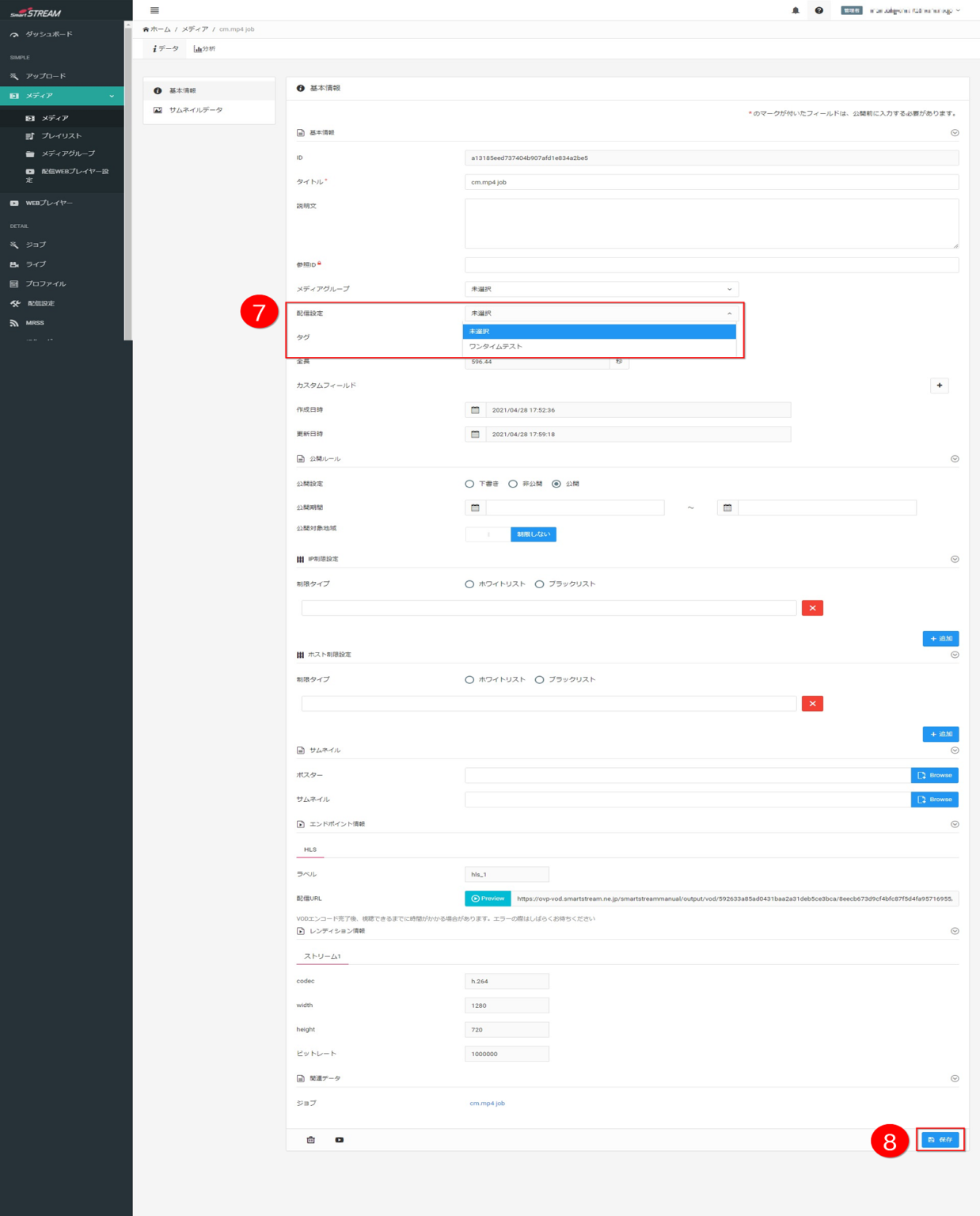
Click Home > Media and select the media name for which you want to set a One-Time URL.
-
From the Distribution Settings drop-down menu, select the distribution settings name entered earlier.
-
Click Save.
6.Video Encryption Settings (Optional)
By encrypting the video file itself, viewers will be unable to play the video even if they save it to their computer, thereby preventing unauthorized use and copying of the video.
-
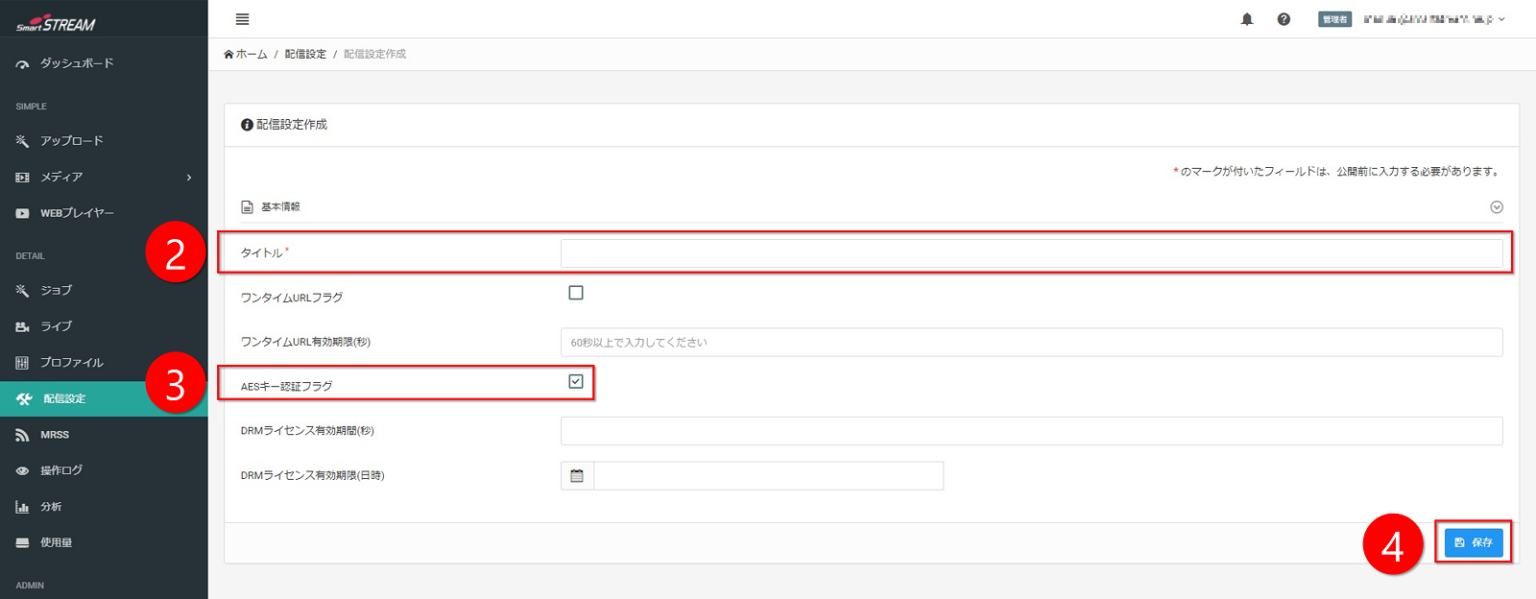
Click Home > Distribution Settings > Create Distribution Settings.
-
Enter a title.
(Since this is not publicly visible, set a name that is easy for the distributor to understand.) -
Check the AES Key Authentication flag.
-
Click Save.
-
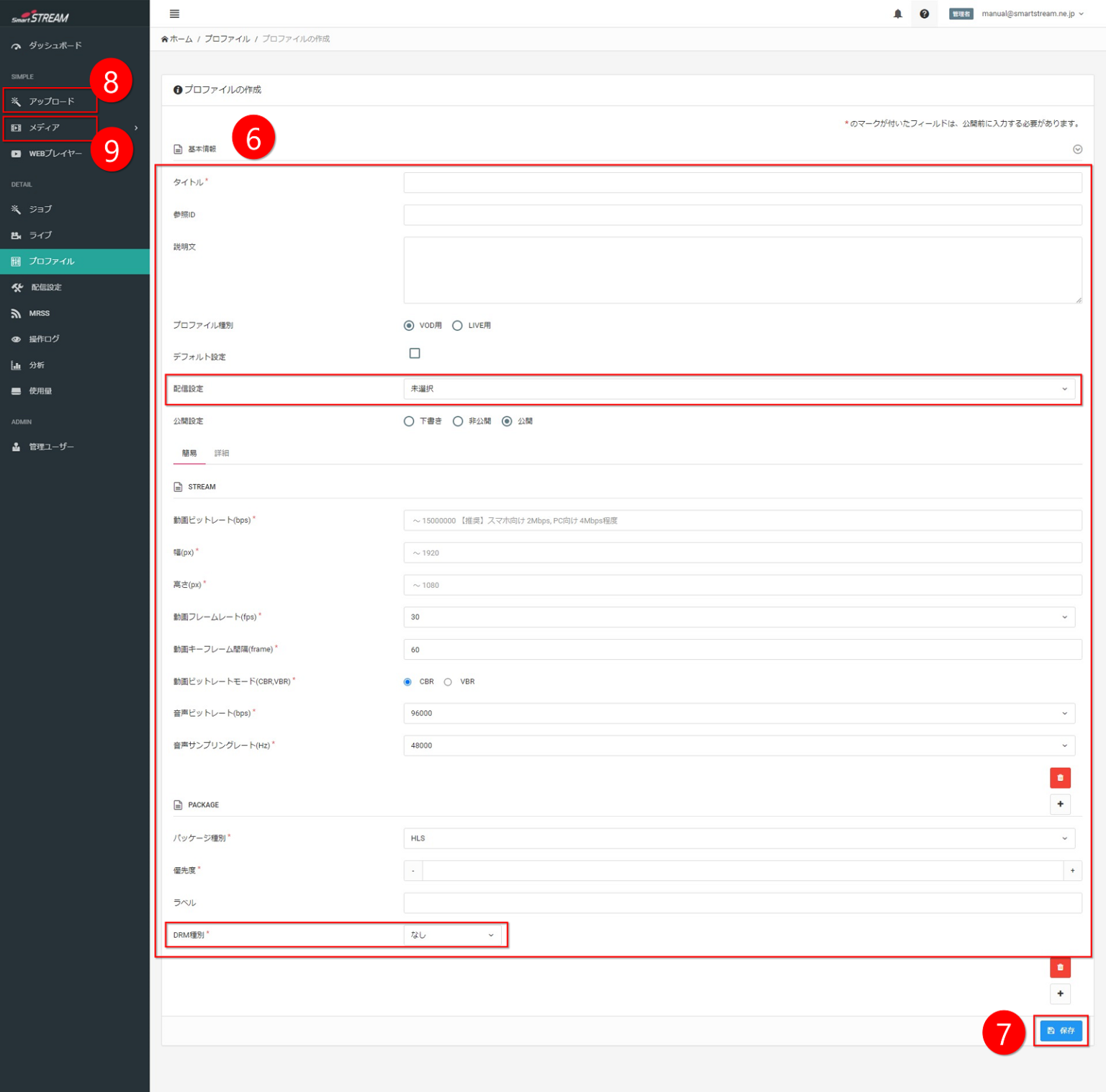
Click Home > Profile > Create Profile.
-
Enter each required item.
From the Distribution Settings drop-down menu, select the distribution settings name entered in step 2.
From the DRM Type drop-down menu, select “AES128”. -
Click Save.
-
Click Home > Upload, select the profile created in step 6, and upload the video.
-
Click Home > Media and select the media name encoded in step 8.
-
From the Distribution Settings drop-down menu, select the distribution settings name entered in step 2, then click Save.
7.DRM (Optional)
This feature is called Digital Rights Management and is used when distributing content such as movies or dramas that require strict copyright control.
Other Methods
In addition to the features provided by this service, unauthorized copying can also be discouraged by embedding watermarks in videos before uploading.
Notes
So far, we have introduced methods to prevent unauthorized copying and distribution of videos.
However, unfortunately, it is not possible to completely prevent duplication. If someone has specialized knowledge or equipment capable of screen recording, these measures may be bypassed.
Nevertheless, by combining the features introduced above, duplication can be minimized to the greatest extent possible.